Creating Role Groups
Role Groups enable the Concert Platform Administrator to establish permission levels for all institution users. To access the 'Role Groups', click on the Admin module within the Concert Platform.
There is one standard role group already built into the platform: Administrators. At or before the training visit, your Concert Platform account manager will work with you to build out the desired role groups. You can create as many role groups as you need. Role groups are differentiated by the permissions and/or ordering user type. Permissions can be broken down into a few different categories:
Administrator Permissions:
- Manage vendors
- Manage preferred tests
- Manage role groups
- Manage users
- Edit company profile and View reports
Sendout User Permissions:
- Manage pending results
- Mark results as processed
Approval Process Permissions:
- Approve Orders
- Assign Reviewer to Orders
For Ordering User Type, there are four options:
- Order All
- Non-Ordering
- Approval Required - All
- Approval Required - Conditional*
*Conditions for the Approval Required - Conditional can be found in the Approval Process module.
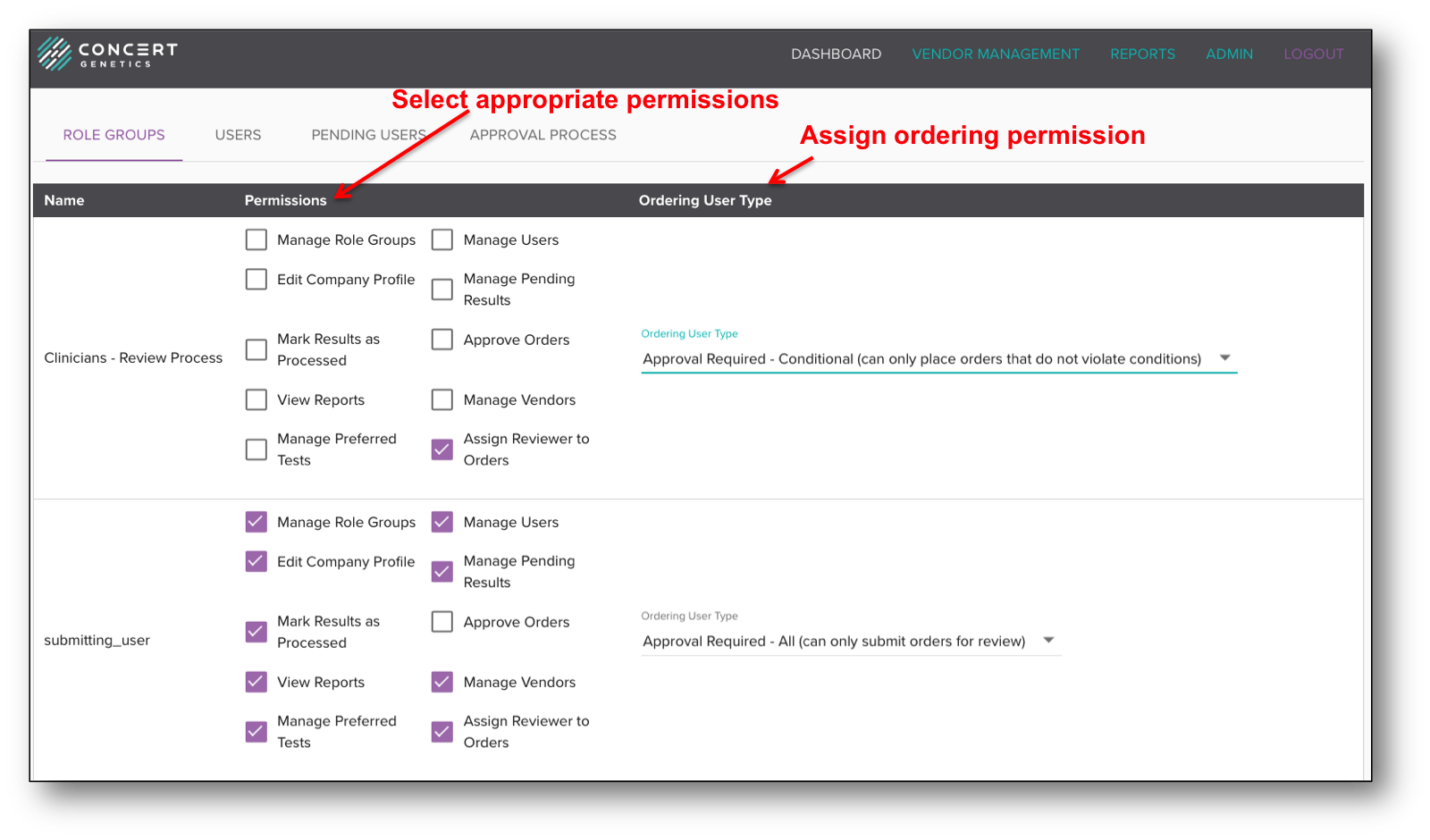
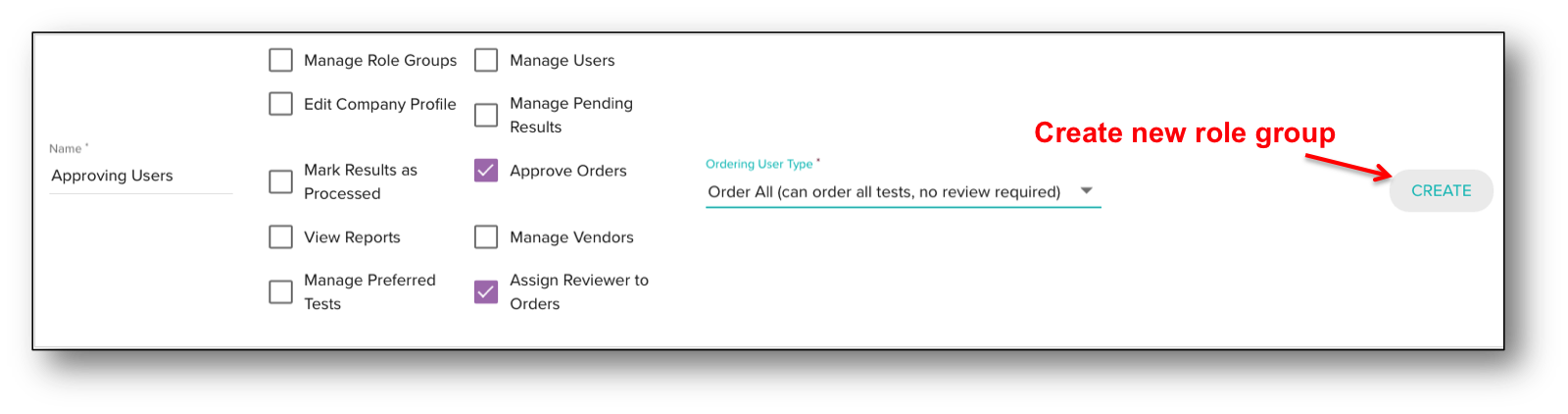
To create a new role group, type the name of the group, check the respective permission boxes you wish to assign to that role, select the ordering user type from the dropdown, then click 'Create'.