Order Details
Complete all appropriate fields. The only required field on this page is the provider name. Once the provider is selected, the ‘Continue’ button will populate. Click when ready to proceed.
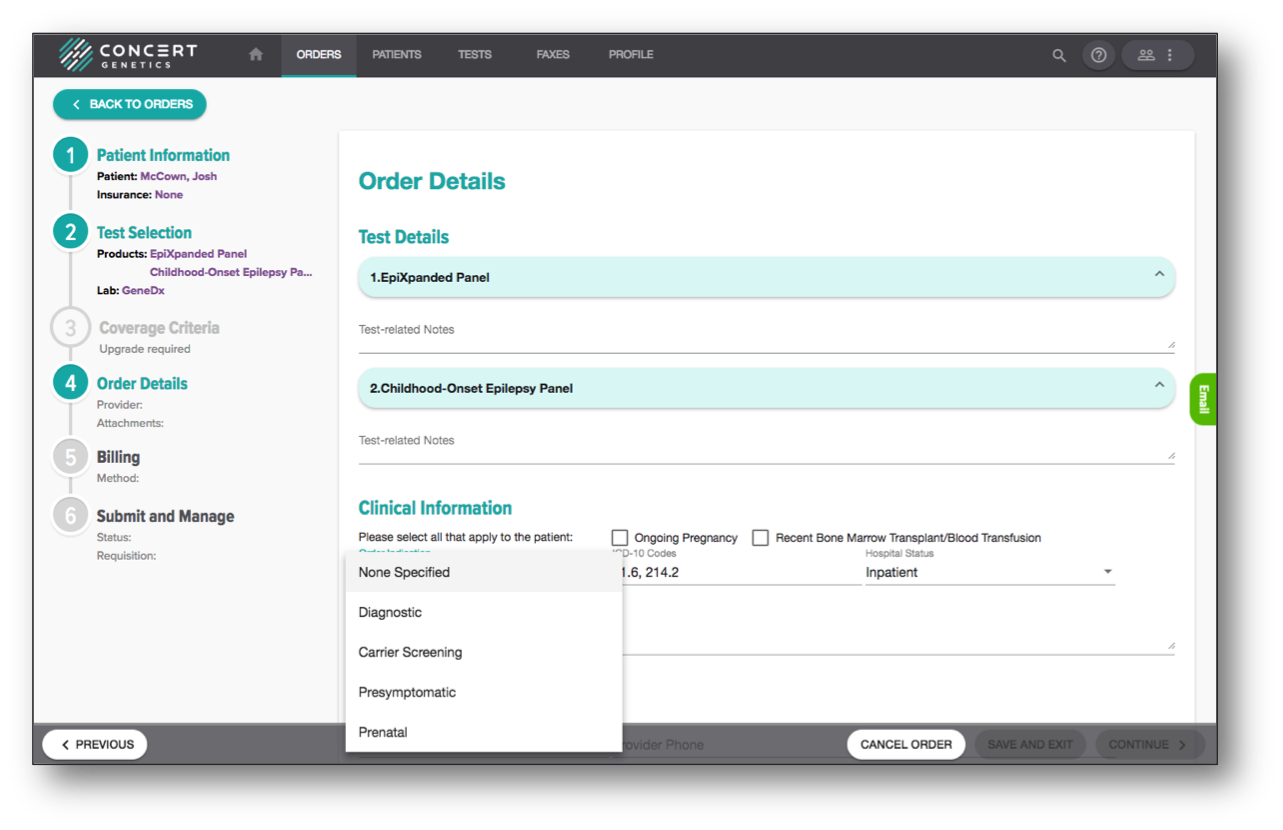
Select Indication You can select the reason for ordering the test(s) from the dropdown. This is not a required field, so if you don't see your targeted response, you can leave the field blank and manually write the indication on the requisition.
Specify Test Order When Ordering Multiple Tests When ordering more than one test, you can indicate whether your preference is to run the tests sequentially or concurrently. When only a single test is ordered, this field will not be available. When multiple tests are ordered, the default setting will be sequential. If selecting sequential, you should use the up/down arrows to arrange the tests in the order you want them performed. On the test order page of the requisition, a corresponding box will be checked to indicate sequential/concurrent, and if sequential has been selected, the tests will be numbered based on the final order.
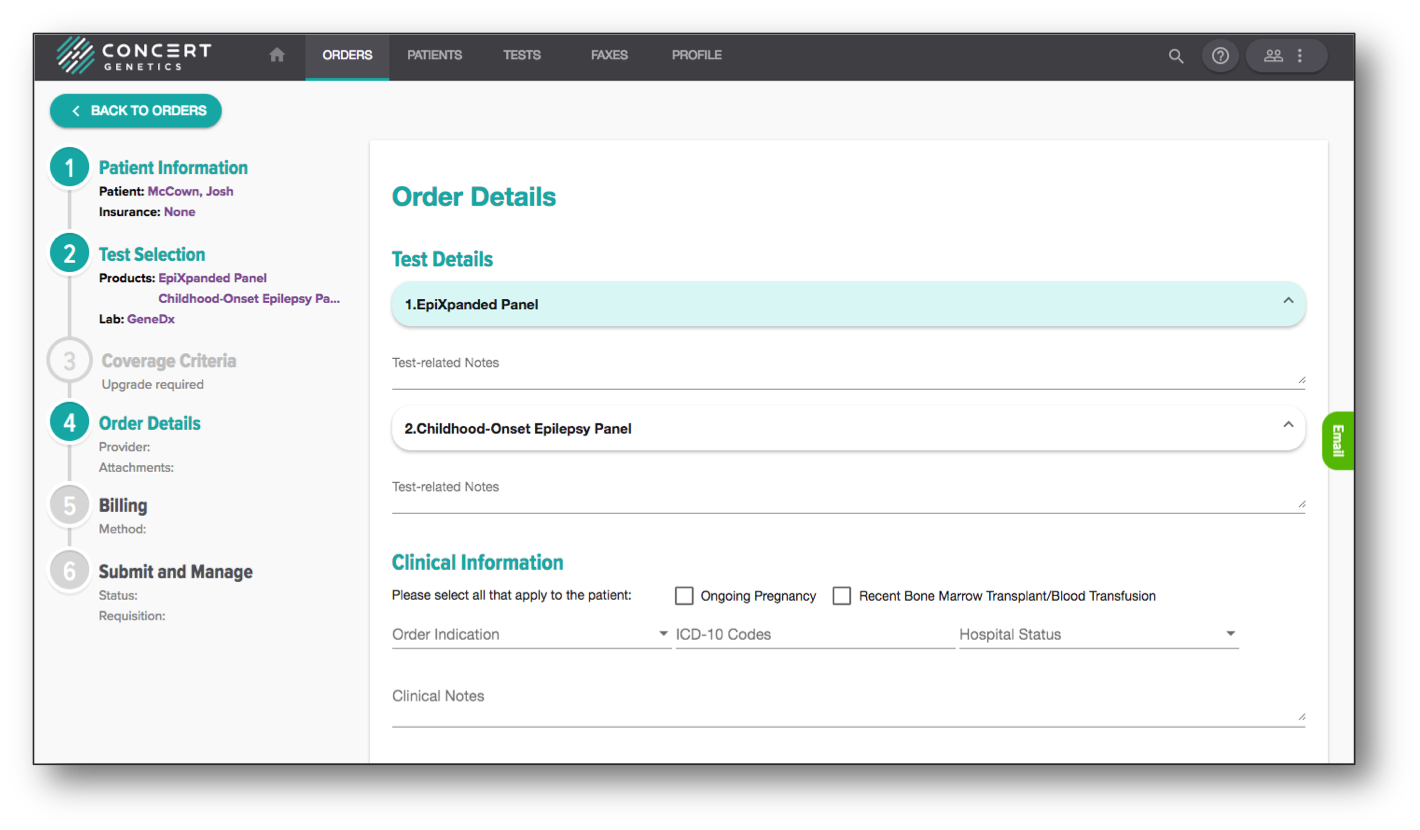
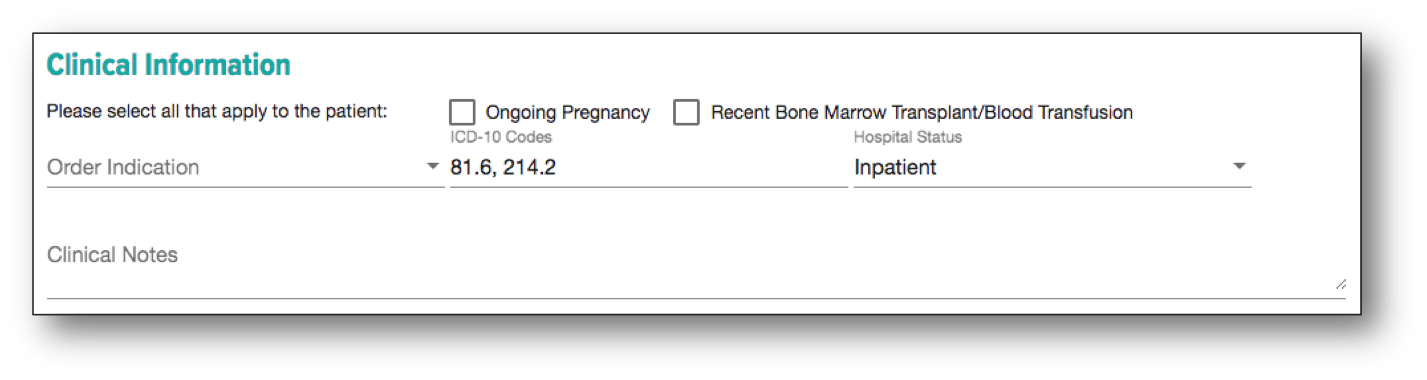
Hospital Status Select whether the patient's status at time of order is Inpatient or Outpatient.
ICD-10 Codes Complete the ICD-10 codes field if desired. If entering multiple codes, please separate them with a comma.
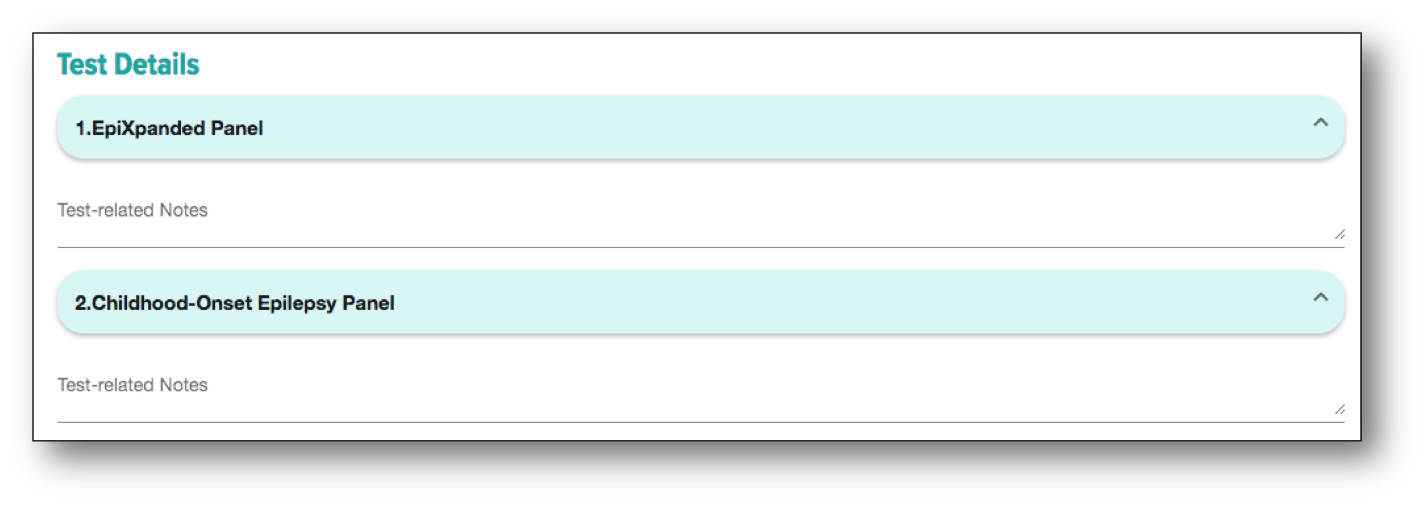
Test Notes Users can make special requests about the test or include additional test related information here. The information populated in this section will appear on the test requisition form in the 'Test Notes' section. Please note clinical information related to the patient should be entered in the 'Clinical Notes' section on the History step.
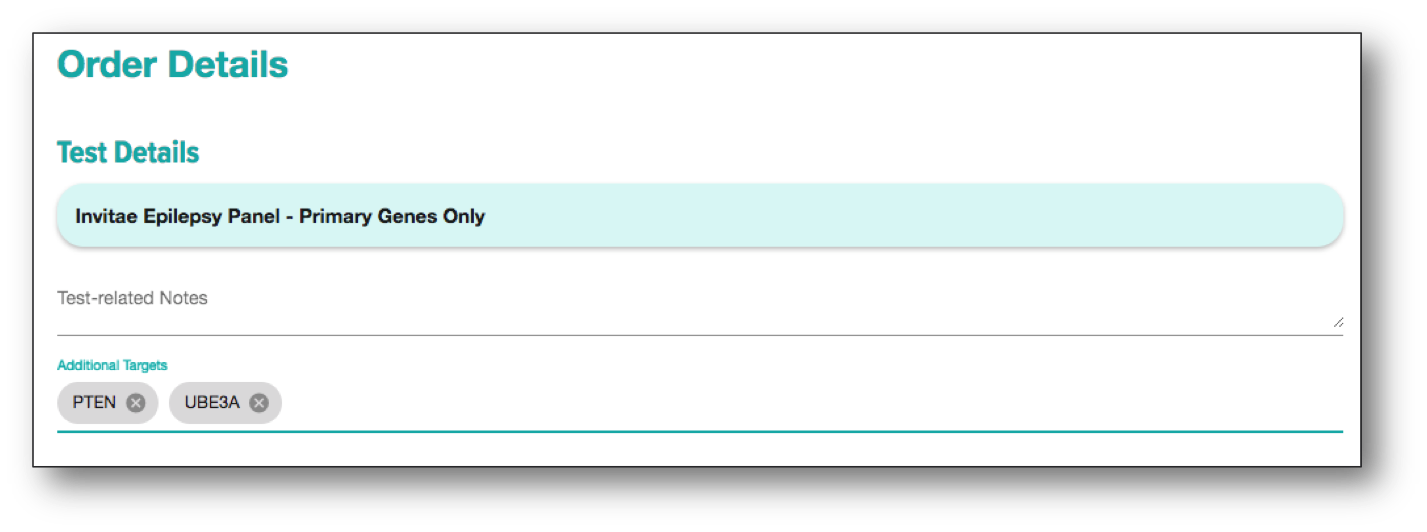
Edit Custom Panels For laboratories that have the Custom Panel feature turned on, you can customize your panel within the Tests to Order section. To add a gene to a custom panel, type in the gene name then select the gene from the dropdown. You can add as many genes as identified in the parenthesis (in the example below the number of genes is 20). This policy is set by the laboratory. To remove a gene, click the X next to the gene name. Once the order is placed, the additional genes will be added to the order page of the requisition and will be found in the Details section of the test orders on the Dashboard.
Category-Specific Information For certain categories that require additional information, Whole Exome and Known Mutation Analysis, additional optional fields will be made available for completion. The information entered in these fields will populate on a special test requisition page.