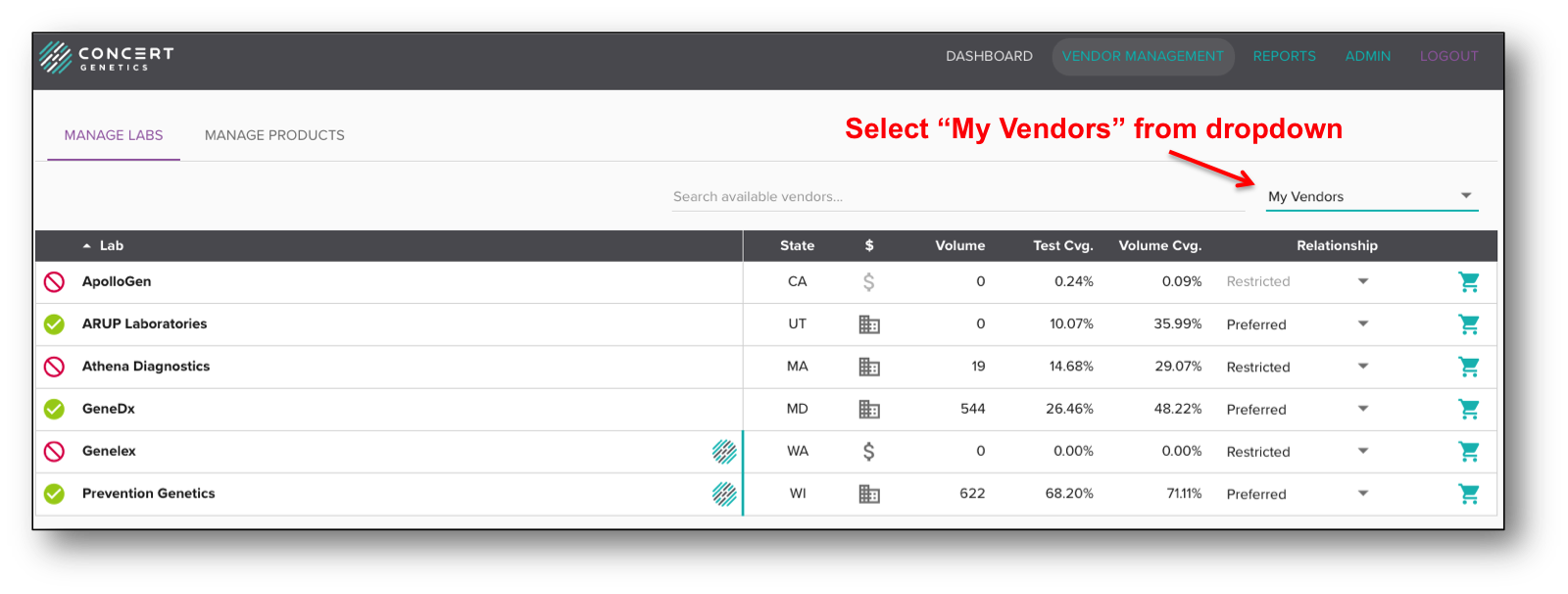
Adding New Preferred/Restricted Labs
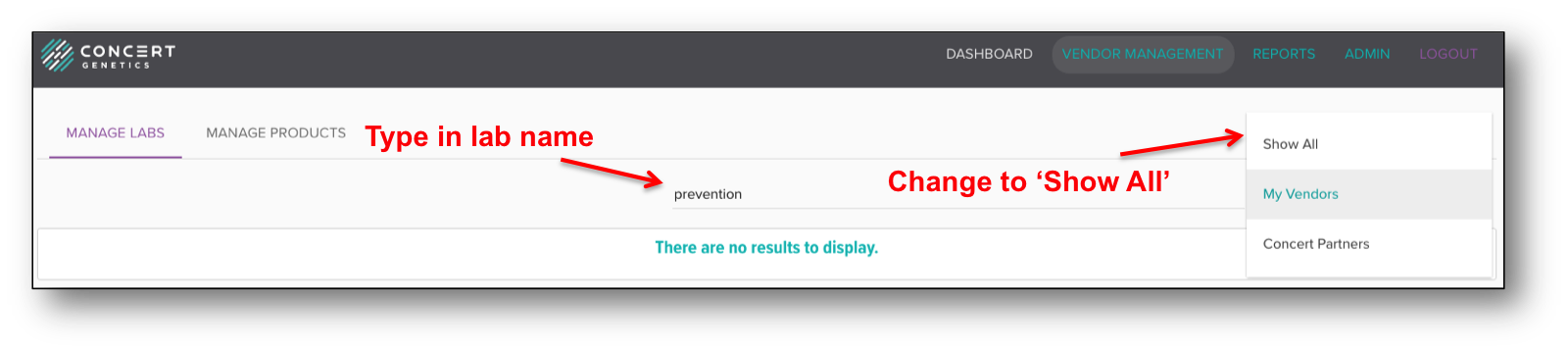
To search for a new laboratory, switch the dropdown to 'Show All' laboratories. Once the complete list is displayed, type in the laboratory's name in the 'Search available vendors' box.
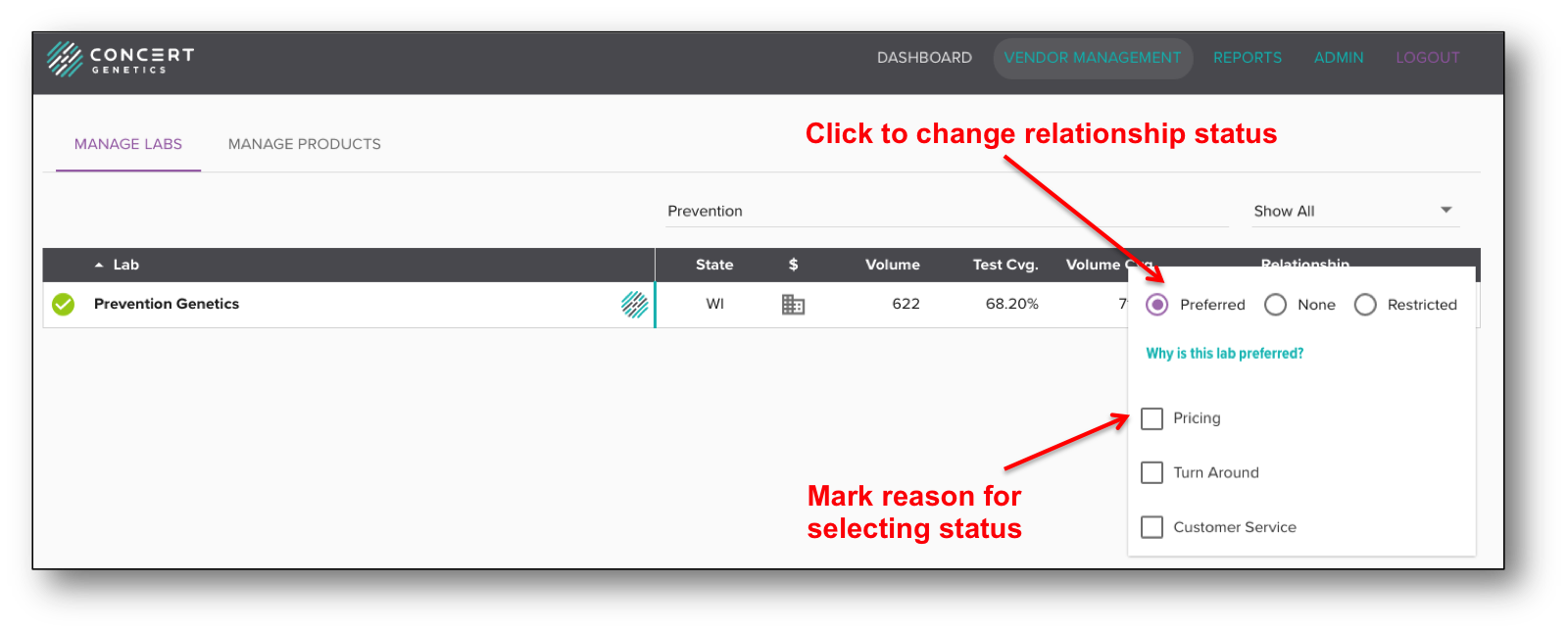
Once the laboratory is displayed, click the dropdown under Relationship and change from 'None' to either 'Preferred' or 'Restricted'. You will then be prompted to select the reason(s) for the change in relationship status. You can check multiple reasons or you can choose to not complete this information. However, documenting reasons for using or not using a laboratory will greatly improve documentation and analysis in the future. Settings will be automatically saved.
To add additional laboratories, delete the initial laboratory name you searched for and type in the name of the next laboratory. Once finished assigning relationships, make sure all text is deleted from the search box. To view your selected vendors, change the dropdown to 'My Vendors', and when nothing is in the search box, all laboratories marked as 'Preferred' or 'Restricted' will be displayed.