Improve
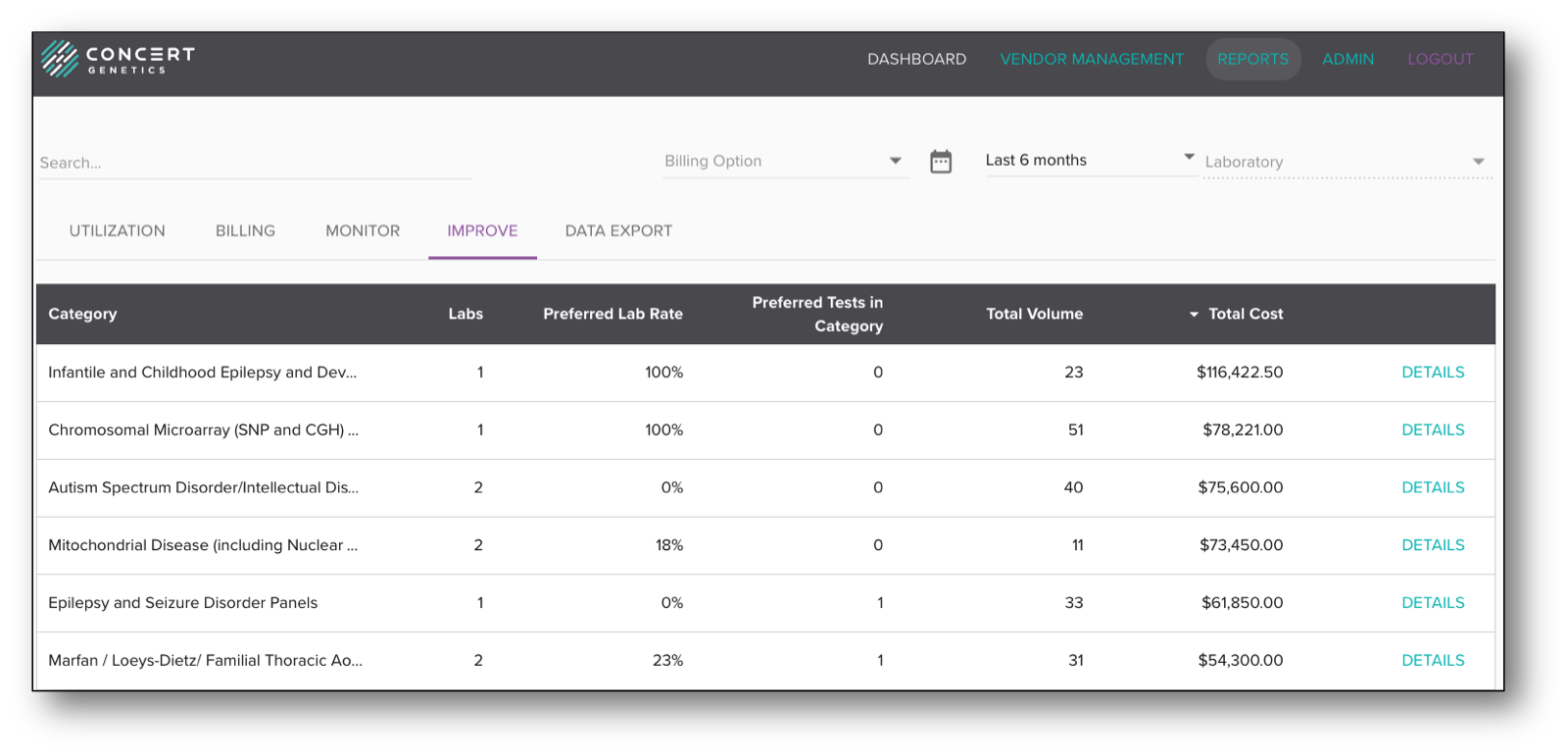
The purpose of the Improve Report is to highlight potential cost savings opportunities by identifying scenarios where there are cheaper priced testing options within the same test category. On the summary page, you will find the name of the test category, the number of labs ordered from, the percent of time your institution ordered from a preferred lab within that category, the number of preferred tests set in that category, the total volume and the total cost. Administrators can sort by any of the column headers. To access more information about that test category, click on 'Details'.
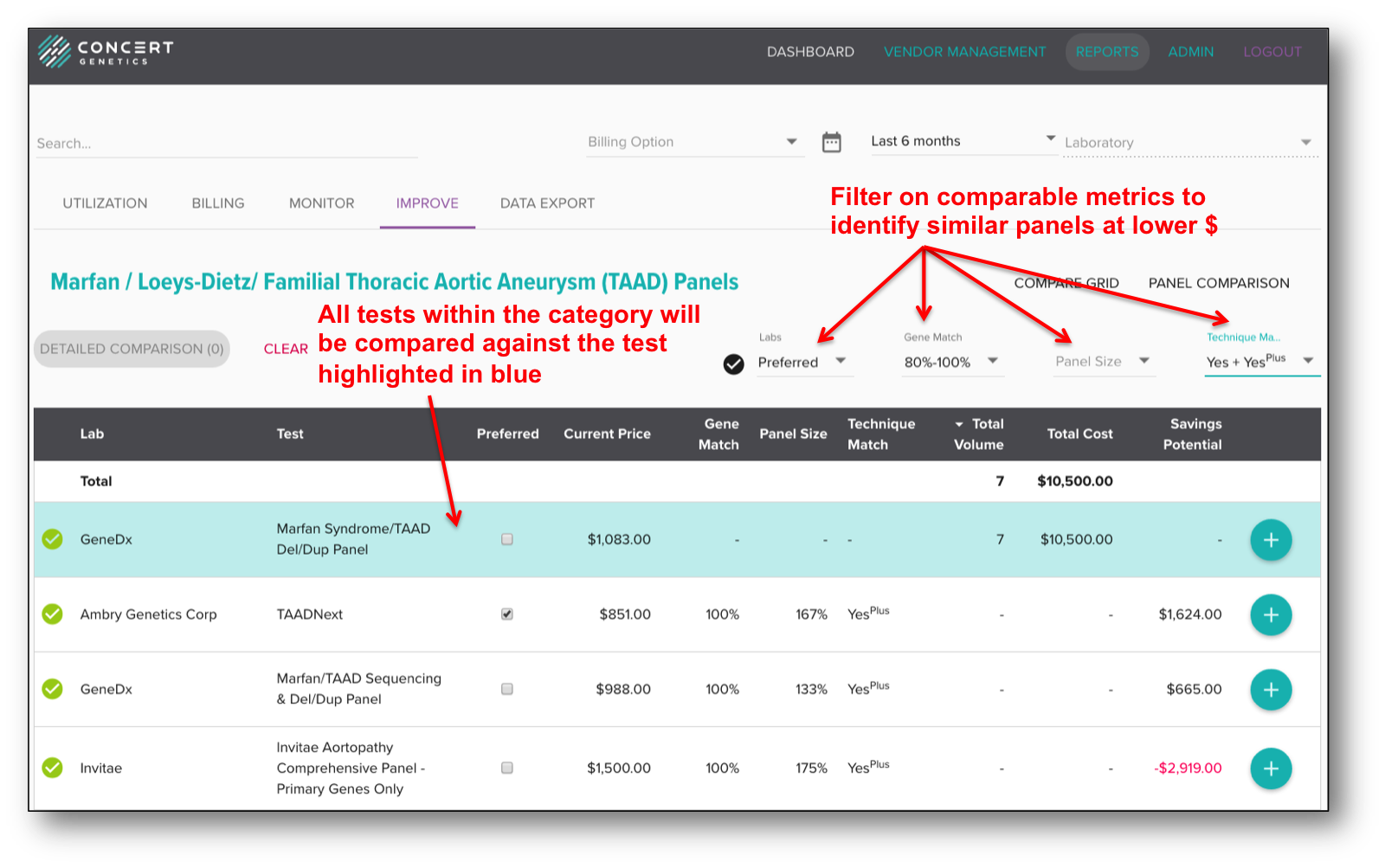
Once an Administrator has accessed the Details section for a test category, he/she will see the laboratory, the test name, the current price, the order volume and cost for the designated time period. The report automatically calculates savings potential and compares all tests in the category against the test highlighted in blue. When users change which test is being compared against, all data will automatically update.
Savings Potential is calculated by multiplying the selected comparison test's price (test highlighted in yellow) with the volume ordered for each specific test, and then subtracting that total from the total cost of that specific test. If you selects a different test to compare against, the savings potential will recalculate based on the price of the new comparison test.
Because not all tests within a category are the same, the Improve Report does a comparison for all tests in the category against the selected test based on three metrics: Gene Match, Panel Size and Technique Match. Gene Match calculates the percentage of genes that the panels share, Panel Size relates to the number of genes on the panel and Technique Match compares the tests based on the documented techniques (sequencing or deletion/duplication for example).
Users can also filter by these three metrics to more easily identify the most comparable tests. In addition to filtering based on Gene Match, Panel Size and Technique Match, users can also filter by lab status. Once specific tests are identified, users can click the '+' buttons next to the tests to access the 'Detailed Comparison' report.